
Troubleshooting Undefined Checkout Errors
Many times, if there’s an issue during checkout, you’ll see a specific error message—usually something like Fraud Alert or Card Declined (insufficient funds).
However, sometimes you might get a generic error such as:
“An error occurred, please try again or try an alternate form of payment.”
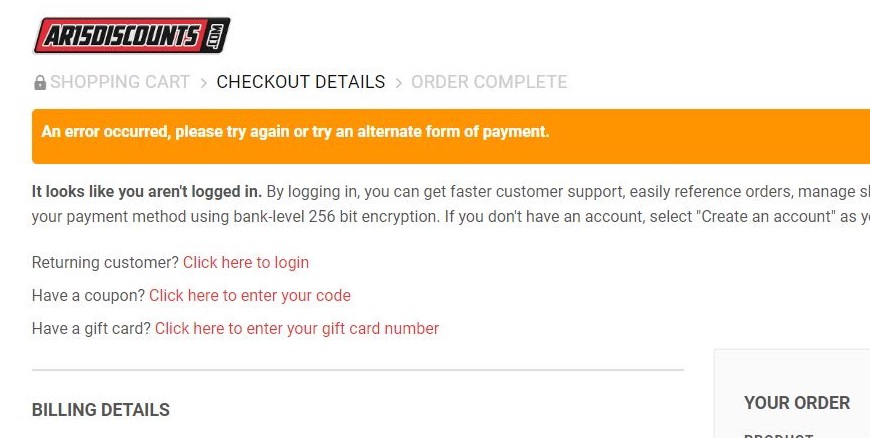
If you encounter this, here are two quick solutions to get you back on track:
- Clear your browser cache: Old or stored browser data can cause unexpected checkout errors.
- Use a private/incognito browser window: This often fixes temporary issues or browser conflicts.
Below, you’ll find step-by-step instructions on how to clear your cache on popular browsers and mobile devices.
How to Clear Your Browser Cache:
- Google Chrome: Settings > Privacy and Security > Clear browsing data
- Mozilla Firefox: Options > Privacy & Security > Cookies and Site Data > Clear Data
- Safari: Preferences > Privacy > Manage Website Data > Remove All
- Microsoft Edge: Settings > Privacy, Search, and Services > Clear browsing data
Clearing Cache on Mobile Devices:
- Android (Chrome): Settings > Privacy and Security > Clear browsing data
- iOS (Safari): Settings > Safari > Clear History and Website Data
If you’re still having trouble, we’re here to help!
If you receive an error page during checkout, please include the Cloudflare Ray ID shown at the bottom of the page when contacting us. This information helps us identify and troubleshoot the issue more quickly.
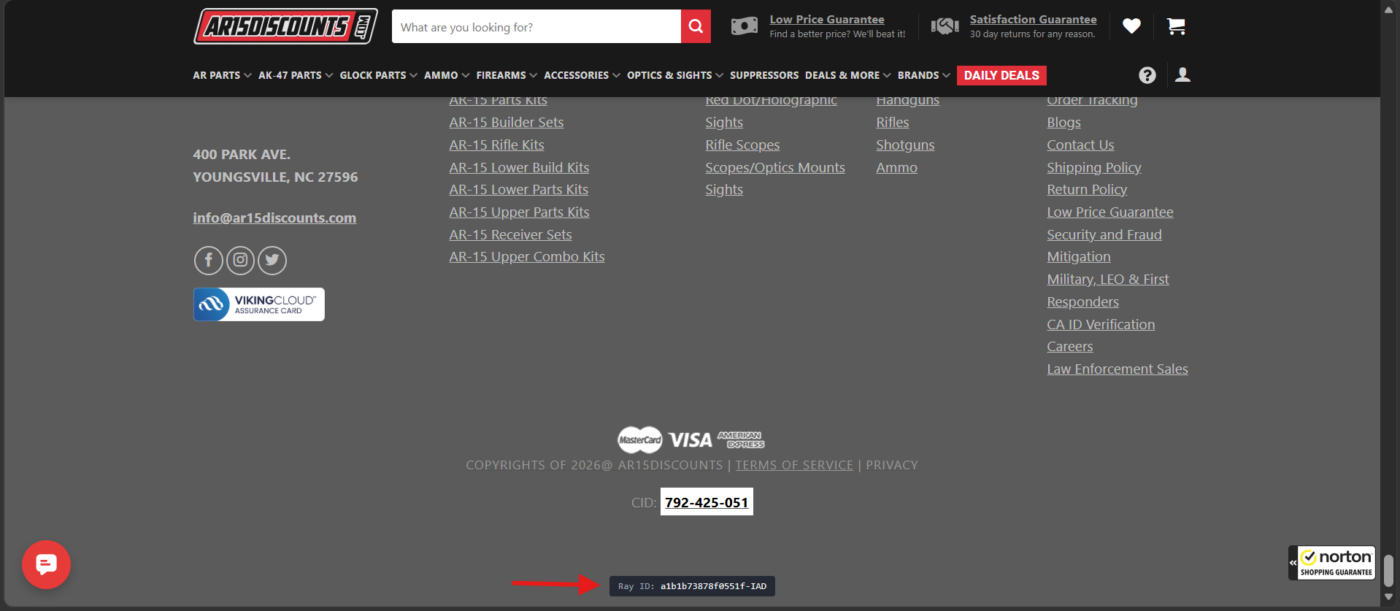
Reach out to us directly:
Through Live Chat on the bottom left corner of the screen, or E-mail us at: [email protected]